
 Image: Wowhead
World of Warcraft: Forever officially supports playing with a Gamepad and Blizzard breaks down everything you need to know.
If you prefer a gamepad, World of Warcraft: Forever gives you another way to join the action.
In World of Warcraft: Forever, we’ve refined targeting, casting, looting, and menu navigation for gamepads while keeping the familiar feel players have come to know.
Get to Know Your Gamepad Experience WoW: Forever supports all XInput-compatible controllers and includes Xbox and PlayStation button icons to help you recognize the controls.
Switch to Gamepad Controls Press Escape to open the Game Menu, select Options, then choose Gamepad under Gameplay to switch from keyboard-and-mouse input.
Make the experience your own in the Gamepad settings. You can adjust Camera, HUD Modifier, Frame Focus Style, Action Bars, Targeting, and Raid Targeting Options.
Just as you arrange spells and abilities on your action bars, take a little time to set up your gamepad controls around the abilities you use. Try a layout that feels comfortable, then adjust it as you learn new spells or change how you play.
A little faction pride, right in your hands!.
On controllers with supported lighting, the light turns red for a Horde character and blue for an Alliance character.
Take a little time to try moving, selecting targets, and using your abilities before heading into a busy fight.
Put the Controls to Work Here’s a quick guide to moving, choosing targets, using abilities, and navigating menus with a gamepad. We’re using Xbox button names to describe these controls.
Move and look around: Move your character with the left stick and adjust the camera with the right stick.
Select a target: Use the left bumper (LB) for a friendly target or the right bumper (RB) for a hostile target.
Interact and navigate: The controller map lists X for Interact, A for Jump, B for Back, and Y for Inspect. These buttons also have spell functions.
Switch action bars: Hold LT, RT, or both triggers together to access different action bars. Release the triggers to return to your default action bar.
Open menus and change focus: The Menu button opens the Main Menu. The View button, marked with overlapping squares, is listed as Change Focus Frame.
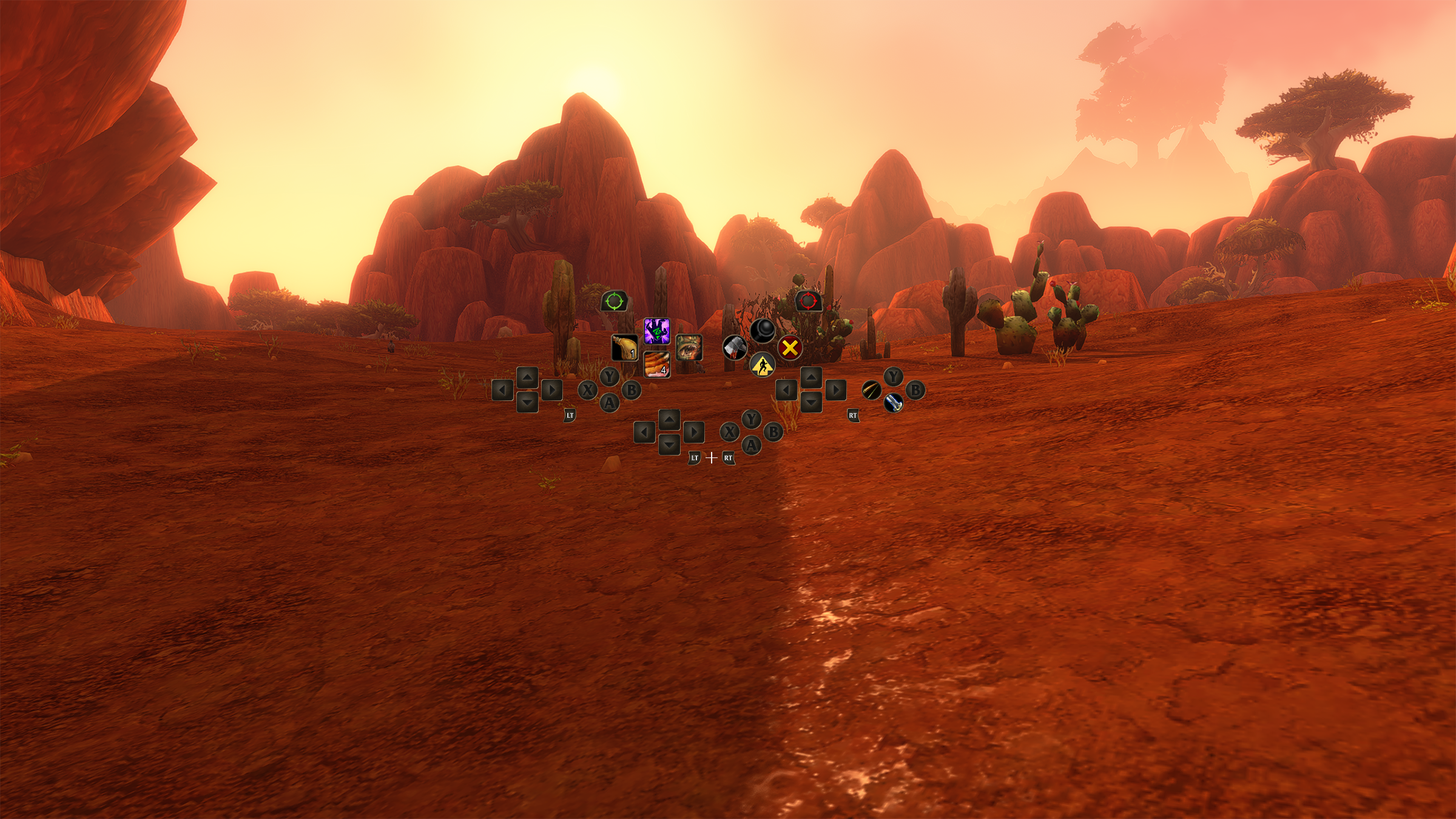
The heads-up display, or HUD, uses several panels arranged to mirror a gamepad’s layout, helping you connect your abilities with the controls in your hands.
More Abilities, Familiar Buttons The gamepad HUD shows four action bars. Each uses the same button layout but can hold a different set of spells and abilities. Hold LT, RT, or LT + RT to switch bars, and release the triggers to return to the default bar. The HUD updates to show the abilities available on your active bar.
For example, a Mage could assign four spells to the same directional button:.
Up: Polymorph (Sheep).
LT + Up: Fireball.
RT + Up: Frostbolt.
LT + RT + Up: Blizzard.
These are example assignments, not fixed bindings—choose the spells and abilities that suit you.
Organize Your Action Bar Sets Want separate layouts for combat, utility abilities, or frequently used actions?. You can switch between three action bar sets by holding LB + RB and pressing Left or Right on the directional pad (D-pad).
Each set contains four action bars with 28 slots combined, giving you 84 customizable spell and ability slots across all three sets. The button layout stays consistent as you switch sets, so you can reach different groups of abilities without opening menus.
Reach Your HUD with Shortcuts Hold both shoulder buttons (LB + RB), then press the following buttons to access frequently used HUD elements:.
LB + RB + B: Open Backpack.
LB + RB + Up: Access Quest Tracker.
LB + RB + Down: Access Chat.
Source: Wowhead ↗